Tuesday, September 29, 2020

Facebook Accounts Center Enables “Super Sync” With Instagram, Messenger

Tech giant Facebook has started testing a new Accounts Center feature for Facebook, Instagram, and Messenger. It is designed to streamline cross-platform activity between your Instagram and Facebook accounts. Accounts Center has started rolling out to the users and it’ll be available in the settings menu on Facebook’s apps.

It’s an optional feature, and you can use it to manage your Instagram, Facebook, and Messenger accounts. The Accounts Center also introduces a single sign-on option, which means you can quickly recover your account if you’re locked out.

Talking about the controls, you can toggle settings to automatically share your Facebook stories to Instagram or your Instagram posts to your Facebook wall. It also lets you sync your name and profile picture between accounts. You can also maintain different profile pictures & usernames for Facebook and Instagram and still use its other features.

Facebook Pay on Accounts Center
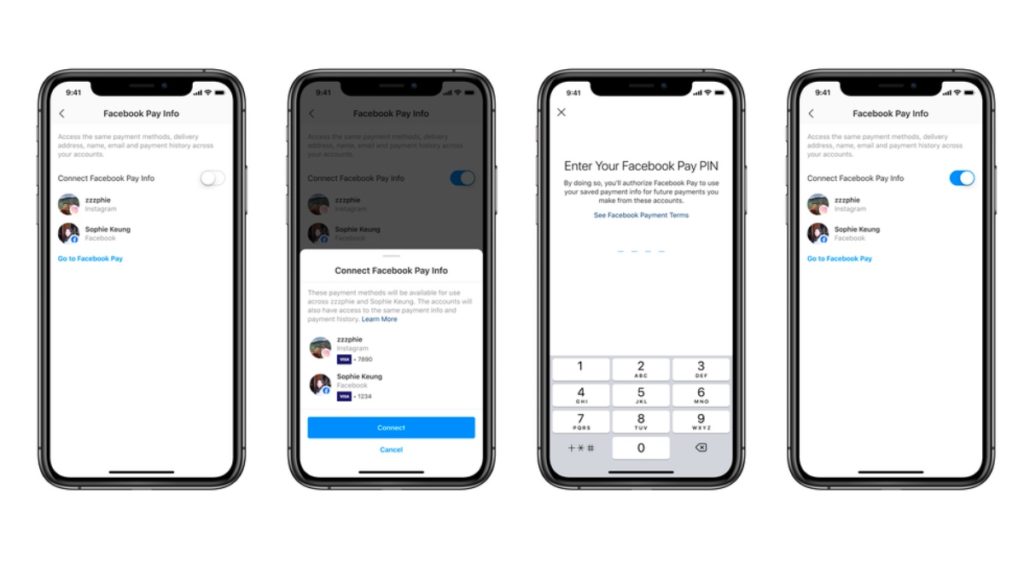
Facebook Pay integration on Facebook Accounts Center

Facebook Pay is a payment method that works across the company’s apps. You can use Facebook Pay to make purchases and donations on Facebook, Instagram, Messenger, and WhatsApp. In the US, users can add their PayPal accounts or credit/debit card details to Facebook Pay.

The company is integrating this into the Facebook Accounts Center too. It means the accounts center will save your payment details and make it available across Facebook’s social networking apps. The feature will be added to the Accounts Center later this year.

Simply put, Facebook is trying to put its cross-platform integration to good use by linking Facebook and Instagram accounts as much as possible. Facebook Accounts Center lets you sync your Instagram, Facebook, and Messenger. If you’re an active user, it saves you the hassle of setting preferences for every single post.

The post Facebook Accounts Center Enables “Super Sync” With Instagram, Messenger appeared first on Fossbytes.


from Fossbytes https://ift.tt/3kSD2sq
via IFTTT

Bagisto: An Open Source eCommerce Platform

Brief: Bagisto is a relatively new open-source eCommerce platform built on Laravel. Let’s see what it has got to offer.

Bagisto: Free & Open Source eCommerce Platform Built On Laravel

Bagisto Open Source Ecommerce

I have discussed some of the best open-source eCommerce platforms to build shopping websites in the past. Recently, I came to know about a new platform called Bagisto. It’s built on Laravel, which is a free and open-source PHP framework.

On the first look, it’s impressive to find an open-source eCommerce solution that lets you craft beautiful shopping experiences. Hence, I decided to give a quick look on what it offers and if it’s something that you can try.

Features of Bagisto

Bagisto Demo
Bagisto Live Demo

Of course, just like any other eCommerce solutions, you should expect the essential options available to build a basic online shopping website. In this case, I think it ticks all the boxes for the basic requirements while also providing some useful/advanced options.

  • Ability to create a marketplace to allow other vendors to sell their products
  • Multi-store inventory to easily manage the stock you have in a physical retail store and a warehouse depending on your business
  • Search Engine Optimization options for your products
  • Access control level to prevent unnecessary access to agents, shopping partners, or an admin.
  • Detailed insights report for effective marketing campaigns and improvements
  • Add/manage shipping methods
  • RTL supported system
  • Customer group options
  • Easy cart management
  • Multiple Payment methods supported
  • Convert your web experience into a Progressive Web App for mobile phones
  • Store pick up options (for businesses with physical stores)
  • Multi-currency support
  • Multi-language support
  • Tax calculation support
  • Several extensions to support mobile number login, Stripe payment gateway, dropshipping, Point of Sale and other options to extend the functionality

Getting Started with Bagisto

Bagisto Screenshot 1

To get started using Bagisto, you need to first go through the documentation looking at the server requirements.

You can choose to deploy it locally for a test run or install it on your server after ensuring that it meets the minimum requirements. In either case, you can also take a look at their live demo to explore it.

If you’re going to self-host it, you should note that Instead of creating a standalone Bagisto image, they are using a hybrid method of running composer on an Apache PHP image.

So, yes, you can deploy it via Docker as well. You will also find their GitHub page for docker implementation useful with the necessary instructions.

If you’re curious to learn more, you can check out their recent video on the latest release (at the time of writing this):

Wrapping Up

Depending on what you require, you may go ahead and try some of the options that we mentioned in our list of open-source eCommerce platforms. Bagisto seems to be a good enough solution for most of the eCommerce businesses with essential and advanced options available.

What do you prefer to use to create your own online shopping website? Feel free to let me know your thoughts in the comments.


from It's FOSS https://ift.tt/3jfAHHz
via IFTTT

Microsoft Edge Web Capture Tool Is Now Available For Dev/Canary Insiders

Microsoft took to its blog and discussed an upcoming Microsoft Edge feature called Web Capture. It’s a tool meant to snip out parts of web pages and save them as an image on your PC.

We have already seen a glimpse of the new screenshot tool, but now Microsoft has made it official. As of now, Microsoft is just rolling out basic screen capture functionality to Dev and Canary channel insiders, but the company has a lot more in store for the future.

Future updates to the Web Capture tool will allow you to mark-up full web pages with scrolling. Also, you’ll able to capture full web pages and add ink or highlight content.

You can access the Web Capture tool by clicking on the three-dot menu button > Web Capture. Alternatively, you can also press the Ctrl+Shift+S keyboard shortcut to open the Microsoft Edge screenshot tool.

Once you capture the screenshot, it will show you options to Copy or Preview the screenshot, so you can do a retake if it isn’t the way you desire.

The Web Capture tool has also got support for the helpful scrolling screenshot feature. While capturing part of the screen, you can simply drag the mouse cursor to the point where you need to capture the screen. In one way, you can take a full-page screenshot by capturing the webpage from corner to corner.

After clicking Preview, you’ll find the options to save the file locally or share it with your friends using the Windows Share Sheet.

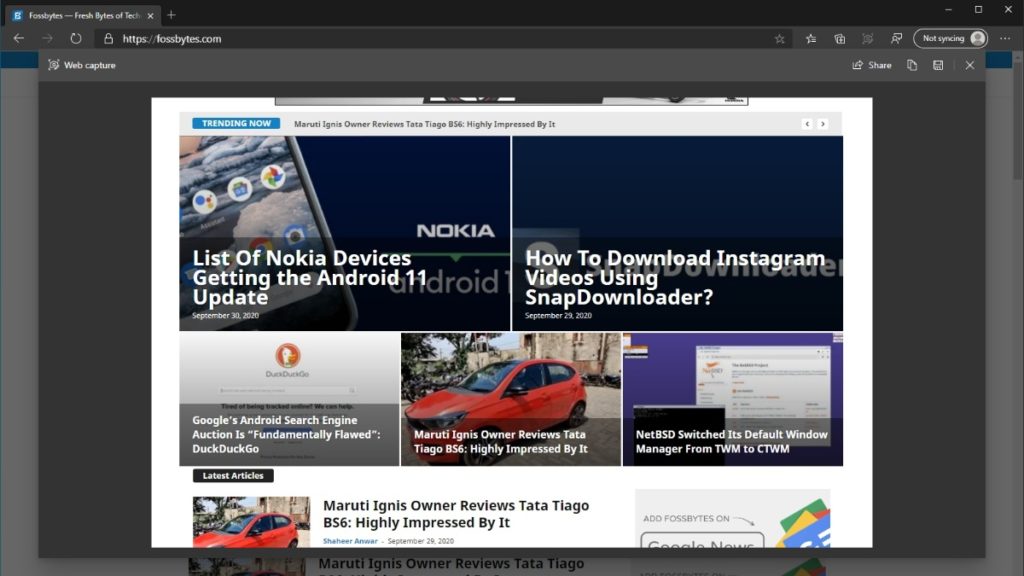
Microsoft Edge Web Capture Preview Screen

Here, you can also right-click on the Web Capture option, then click on Show in Toolbar, and the tool’s icon will start appearing at the top alongside other extensions for easier access.

It would take some time before Web Capture arrives on the stable Edge Chromium builds. Till then, you can check out other amazing screenshot tools for Windows 10.

The post Microsoft Edge Web Capture Tool Is Now Available For Dev/Canary Insiders appeared first on Fossbytes.


from Fossbytes https://ift.tt/2SdESYJ
via IFTTT

List Of Nokia Devices Getting the Android 11 Update

HMD Global, the company behind Nokia, finally has some good news for users waiting for the latest Android 11 update.

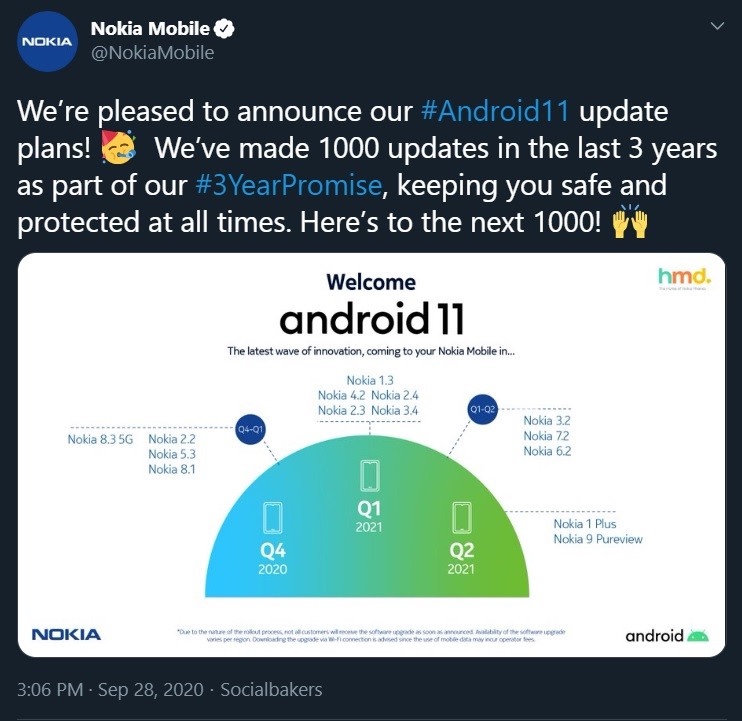
In an official tweet (now redacted), Nokia shared an official roll-out schedule as well as a list of Android 11 supported Nokia devices. It appears HMD Global will begin the Android 11 roll-out with Nokia 8.3 5G, in Q4 of this year.

Nokia Android 11 Roll-out Schedule —

October, November, and December (Q4 2020)

  • Nokia 8.3
  • Nokia 5.3
  • Nokia 2.2

January, February, and March (Q1-Q2 2021)

  • Nokia 4.2
  • Nokia 3.4
  • Nokia 2.4
  • Nokia 2.3
  • Nokia 1.3
  • Nokia 7.2
  • Nokia 6.2
  • Nokia 3.2

April, May, and June (Q2 2021)

  • Nokia 1 Plus
  • Nokia 9 Pureview

Nokia Android phones come with Android One. Introduced in 2014 by Google, the OS provides stock Android experience at an affordable price. Google originally planned to deliver faster Android updates and security updates with Android One, but it’s clear that is not happening, especially with OnePlus and Xiaomi in the queue.

Interestingly, Nokia has removed the Android 11 roll-out schedule tweet, which could mean that this is not the final list. In addition to this, a handful of devices such as the Nokia 7.1, Nokia 6.1, Nokia 8 Sirocco are missing from the list.

Nevertheless, we will update this article as soon as Nokia re-uploads the list of Android 11 supported Nokia devices.

The post List Of Nokia Devices Getting the Android 11 Update appeared first on Fossbytes.


from Fossbytes https://ift.tt/33gPwEu
via IFTTT

Installing Ubuntu with Two Hard Drives

Installing Ubuntu with Two Hard Drives

Many computers these days come with two hard drives, one SSD for fast boot speeds, and one that can be used for storage. My Dell G5 gaming laptop is a great example with a 128GB NAND SSD and a 1TB SSD. When building out a Linux installation I have a few options. Option 1: Follow the steps and install Ubuntu on one SSD hard drive for quick boot times and better speed performance when opening files or moving data. Then mounting the second drive and copying files to it when I want to backup files or need to move files off the first drive. Or, Option 2: install Ubuntu on an older hard drive with more storage but slower start up speeds and use the 128GB as a small mount point.

However, as most Linux users are aware, solid state drives are much faster, and files, folders, and drives on a Linux system all have mount points that can be setup with ease.

In this article we’ll go over how to install Ubuntu Linux with separate /root and /home directories on two separate drives – with root folder on the SSD and home folder on the 1TB hard drive. This allows me to leverage the boot times and speed of the 128GB SSD and still have plenty of space to install steam games or large applications.

This guide can also be used for other use cases as well. An example would be old or cheaper laptops that don't have hard drives with high RPM spinning SSDs. If your computer is a bit on the older side (and has an SD card slot) but you want to utilize faster boot times, you can go out and buy an SD card and install the /root partition onto that for quick boot times, and the /home partition on the main drive for storage. This guide, like Linux, can be used for many other use cases as well.


from Linux Journal - The Original Magazine of the Linux Community https://ift.tt/3icgilr
via IFTTT

Dell readies a Tiger Lake refresh on XPS 13 Ubuntu Linux Developer Edition

Arguably the best Linux laptop ever is getting a major speed boost.

from ZDNet | open-source RSS https://ift.tt/347dAss
via IFTTT

Lenovo’s Lightest ThinkPad Ever Also Runs Ubuntu

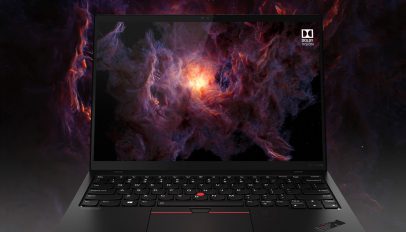
Lenovo ThinkPad X1 Nano ScreenThe Lenovo ThinkPad X1 Nano its the company's lightest ThinkPad to date, but I'm more impressed by the fact it's available to buy with Ubuntu.

This post, Lenovo’s Lightest ThinkPad Ever Also Runs Ubuntu is from OMG! Ubuntu!. Do not reproduce elsewhere without permission.


from OMG! Ubuntu! https://ift.tt/2SclB9T
via IFTTT

Playing Grand Theft Auto Inside A Neural Network’s Hallucination? It’s Possible!

Ever imagined what a Neural Network's hallucination would look like? The post Playing Grand Theft Auto Inside A Neural Network’s Halluc...